As an Amazon Associate I earn from qualifying purchases.
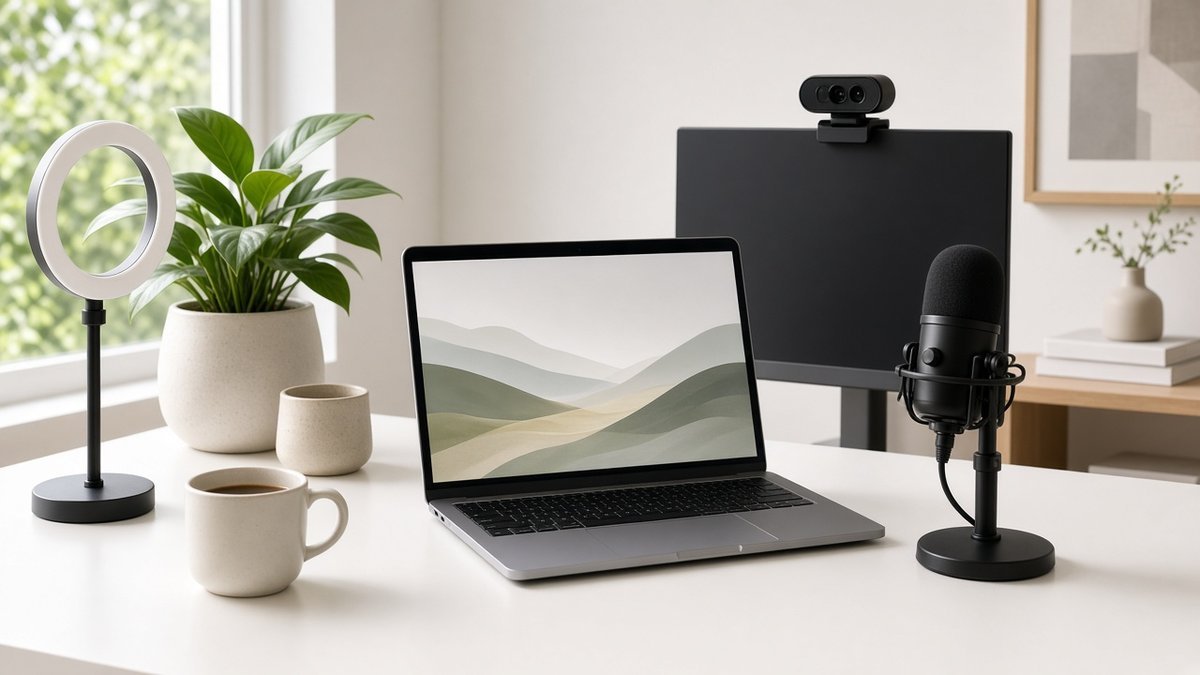
Your video feed is now your first impression. Clients, recruiters and colleagues judge clarity, lighting and audio within seconds, and a grainy, back-lit image with echoey sound undercuts even the sharpest pitch. The good news is that a solid video call setup for remote work does not require a studio. It comes down to four things: a camera at eye level, soft light in front of you, a microphone close to your mouth, and a tidy, private workspace.
Below we break that setup into components and recommend gear for each one from the TrendRanker catalog. Product links go to each item’s TrendRanker page, where you can check current details. We have kept recommendations to what each product is designed for and paired them with practical setup advice you can use with any brand.

Quick Picks
- Logitech Brio 101: Best upgrade over a laptop webcam
- Video Conference Lighting Kit: Best all-in-one lighting for calls
- Sensyne Ring Light with Stand: Best ring light with floor stand
- NEEWER 18″ Ring Light Kit: Best larger ring light kit
- Mini Mic Pro: Best compact wireless mic
- Logitech Blue Yeti: Best desktop USB microphone
- EMEET M0 Plus Speakerphone: Best speakerphone for small meetings
- Nulaxy Pull-Out Laptop Stand: Best laptop stand for eye-level framing
- CloudValley Webcam Cover: Best privacy accessory
Our Top Picks at a Glance
Logitech Brio 101
Video Conference Lighting Kit
Sensyne Ring Light with Stand
As an Amazon Associate I earn from qualifying purchases. Prices and availability change often; check Amazon for today’s price.
Logitech Brio 101: Best upgrade over a laptop webcam
The most common video-call mistake is relying on a laptop’s built-in camera, which shoots up from below. The Logitech Brio 101 is an entry-level external webcam from Logitech’s Brio line, made for everyday video meetings on Zoom, Teams and Google Meet.
An external webcam lets you mount the lens on top of your monitor at eye level, which produces a far more natural angle and makes eye contact easier. It also frees you from positioning your whole laptop just to frame your face. For most remote workers, a reliable plug-and-play webcam paired with good lighting looks better than an expensive camera in a dark room.
Best for: anyone who wants a straightforward, budget-friendly step up from a built-in laptop camera.
Video Conference Lighting Kit: Best all-in-one lighting for calls
Lighting changes how you look on camera more than any other single upgrade. The Video Conference Lighting Kit is designed specifically for meetings, giving you a light you can position in front of you rather than relying on overhead fixtures that cast shadows under your eyes.
Place the light behind or beside your monitor, facing you, slightly above eye level. If you can adjust brightness and color temperature, match the light to your room so your skin tones look natural. A meeting-focused kit is usually compact enough to live on your desk permanently.
Best for: remote workers who take many calls a day and want a dedicated, desk-friendly light.
Sensyne Ring Light with Stand: Best ring light with floor stand
A ring light produces even, soft light from directly in front of you, which reduces harsh shadows across your face. The Sensyne Ring Light with Stand comes with a stand so you can set the height independently of your desk, which is useful if your workspace is small or you also record content.
Position the ring so the camera sits in or near the center of the ring, or just above it. Lower the brightness if you notice glare in glasses or a washed-out look; softer is generally more flattering than brighter.
Best for: people who want flexible lighting height for calls, recording and content creation.
NEEWER 18″ Ring Light Kit: Best larger ring light kit
If you present to clients, run webinars or create video content as part of your job, a larger light gives you broader, softer coverage. The NEEWER 18″ Ring Light Kit is a larger ring light kit from NEEWER, a brand well known among creators and streamers.
A bigger ring light illuminates more of your upper body and background, which helps if you stand while presenting or sit farther from the camera. It does take more floor or desk space, so measure your room before choosing it over a compact light.
Best for: presenters, coaches and remote workers who also record video.
Mini Mic Pro: Best compact wireless mic
Audio matters even more than video. People tolerate a slightly soft image, but they quickly tune out muffled or echoey sound. The Mini Mic Pro is a compact wireless microphone designed to clip on close to your mouth, which is the single most effective way to capture clear speech.
Clip-on wireless mics are ideal if you move around, stand while presenting, or record walk-and-talk videos. Because the mic sits close to you, it picks up less room echo than a laptop microphone across the desk.
Best for: mobile presenters and creators who want clear voice without being tied to a desk.
Logitech Blue Yeti: Best desktop USB microphone
The Logitech Blue Yeti is one of the best-known USB microphones for podcasting, streaming and remote work. A desktop USB mic like this plugs straight into your computer and gives you a dedicated voice microphone instead of the built-in one.
For calls, place it roughly a hand-span or two from your mouth and slightly off to the side, and wear headphones so the microphone does not pick up your speakers and cause echo. Select it as the input in your meeting app’s audio settings. A desk boom arm can help if you want it closer without crowding your keyboard.
Best for: remote workers who also podcast, record voiceovers or simply want broadcast-style voice quality at a desk.
EMEET M0 Plus Speakerphone: Best speakerphone for small meetings
When two or three people join a call from the same room, laptop microphones struggle. The EMEET M0 Plus is a speakerphone designed for conference calls, combining a speaker and microphone in one device that sits in the middle of the table.
Speakerphones are a smart buy for small businesses, shared home offices and hybrid teams who huddle in a meeting room. They are also portable enough to take to client sites. If you usually call alone in a quiet room, a headset or USB mic is often the better option.
Best for: small teams and hybrid meeting rooms.
See the EMEET M0 Plus Speakerphone on TrendRanker
Nulaxy Pull-Out Laptop Stand: Best laptop stand for eye-level framing
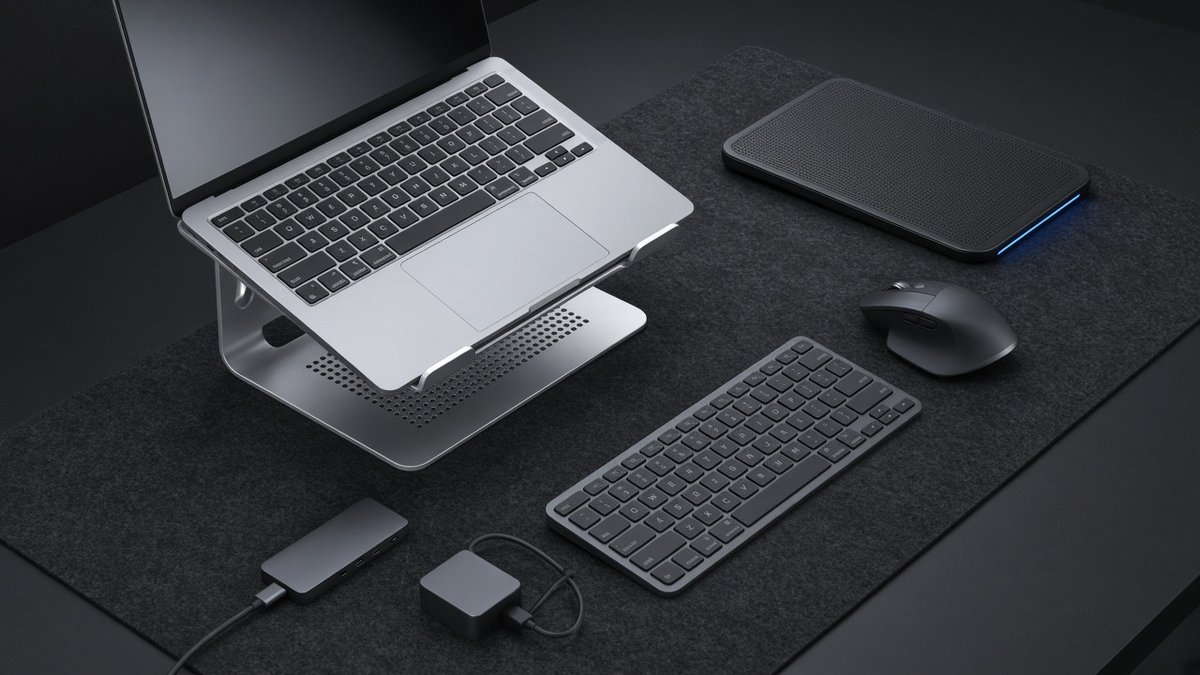
If you work from a laptop, the fastest way to fix an unflattering camera angle is to raise the laptop itself. The Nulaxy Pull-Out Laptop Stand is an adjustable laptop stand that lifts the screen, and the built-in camera, closer to eye level.
Raising the laptop also improves posture during long workdays. Pair it with an external keyboard and mouse so you are not typing on a raised surface. A stand is one of the cheapest improvements on this list and benefits every call.
Best for: laptop-only remote workers and anyone working from a small desk.
CloudValley Webcam Cover: Best privacy accessory
A professional setup is also a private one. The CloudValley Webcam Cover is a thin slide cover for laptop and device cameras, letting you physically block the lens when you are not on a call.
It is a small, inexpensive habit that removes the worry of an accidentally active camera. Before applying a cover to a laptop, check your manufacturer’s guidance on closing the lid with accessories attached, since very thin laptops have tight clearances.
Best for: privacy-conscious remote workers and anyone sharing a workspace.
How to Choose Your Video Call Setup for Remote Work
Fix the angle first
Put the camera at eye level and about an arm’s length away. Frame yourself from mid-chest up with a little space above your head. A laptop stand or an external webcam on your monitor achieves this.
Light from the front, never from behind
Face a window or place a soft light behind your screen. Avoid sitting with a bright window behind you, which turns you into a silhouette. Diffused light is more flattering than a bare, bright source.
Bring the microphone closer
The closer the microphone is to your mouth, the less room echo and background noise it captures. Use headphones with a desktop mic to avoid echo, and choose a speakerphone only when several people share one room.
Tidy the frame
A plain, uncluttered background looks more professional than any virtual blur. Remove anything confidential from view.
Test before important calls
Most meeting apps have a preview screen. Check framing, light and audio input a few minutes before you join.
Frequently Asked Questions
What equipment do I need for professional video calls?
A professional setup needs four basics: a camera at eye level (an external webcam or a raised laptop), soft front-facing light, a microphone close to your mouth or a good headset, and a quiet, tidy background. A speakerphone helps when several people share a room.
Is a ring light good for Zoom calls?
Yes. A ring light gives even, soft front lighting that reduces shadows. Keep the brightness moderate and position the camera in or just above the ring. If you wear glasses, angle the light slightly to reduce reflections.
Do I need an external microphone for video calls?
Not always, but it is often the biggest quality upgrade. Built-in laptop mics sit far from your mouth and pick up room echo and keyboard noise. A USB microphone, clip-on mic or headset makes your voice noticeably clearer.
Where should I put my webcam?
Mount it at eye level, centered on the screen you look at most, roughly 18 to 24 inches from your face. Looking at the lens when speaking creates the impression of eye contact.
How can I improve my video call quality on a budget?
Raise your laptop to eye level, face a window or a lamp, use wired earbuds with a mic, and close bandwidth-heavy apps. These steps cost little and make a bigger difference than an expensive camera.
Conclusion
Great video calls come from fundamentals, not price tags: eye-level camera, front lighting, a close microphone and a clean frame. Start with whichever piece is weakest in your current setup, often lighting or audio, and upgrade from there. Follow the links above to each product’s TrendRanker page to compare options and assemble a setup that helps you look and sound your best on every call. For tips on positioning your screen and camera comfortably, see the OSHA computer workstations guide before you finalize your video call setup for remote work.
Keep reading: Finish your setup with our laptop desk setup essentials for posture and ports, and if you also record videos, our beginner YouTube setup shows which upgrade to buy first. Shopping for a coworker? Try our Christmas gifts for remote workers.

Author: TrendRanker Editorial Team
The TrendRanker Editorial Team is the independent research group behind TrendRanker.online. We compare published product specifications side by side, analyze patterns in long-term verified owner reviews, and screen out products with signs of high return rates or early failures before anything is recommended. Our guides cover remote work and travel gear, everyday tech, personal care, and gifts for US shoppers. We are not paid by brands for placement, and every guide is written in our own words.